Help
Opening SpreadPaper for the first time
macOS warns you the first time you open SpreadPaper, because the project does not have a paid Apple developer signing account yet. Allow it once and it opens normally from then on.
Install
Drag it into Applications
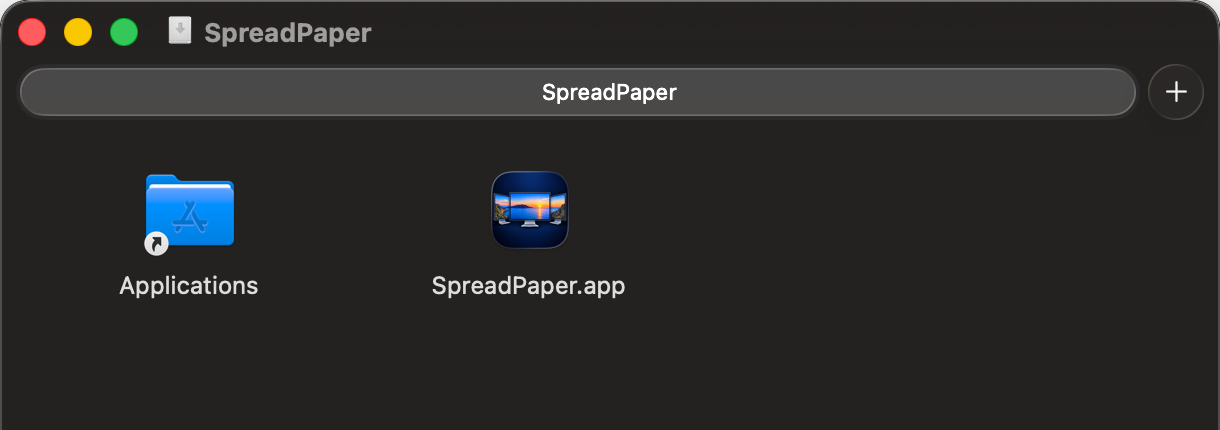
Open the disk image. SpreadPaper sits beside a shortcut to your Applications folder, so drag it across.
Both routes below need the app in Applications, and one of them will only work there.
First launch
Open it, and click Done
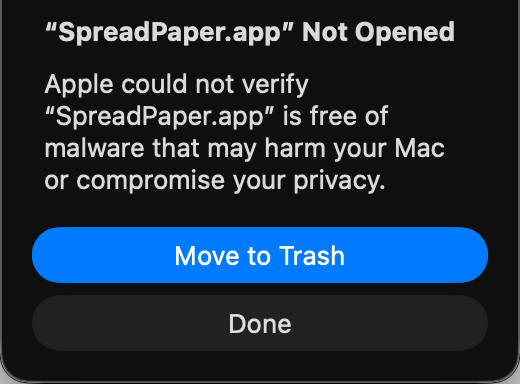
Open SpreadPaper from Applications. macOS shows the warning beside this.
Click Done. Move to Trash is the blue default button, so it is the one your eye lands on. It deletes the app you just downloaded.
Allow it
Allow it, either way
Two routes do the same thing. Take whichever you would rather.
In System Settings
- Open System Settings, then Privacy and Security.
- Scroll to Security.
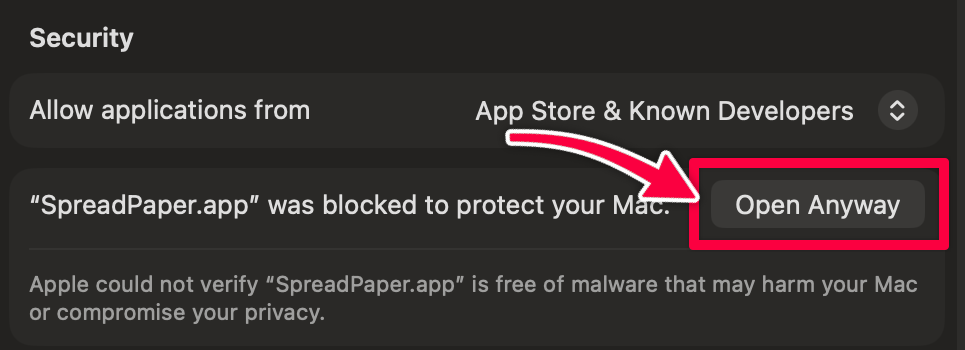
- Click Open Anyway beside SpreadPaper.
- Enter your login password.
The button appears once macOS has blocked a launch, and stays for about an hour. If it is missing, open SpreadPaper again and click Done on the warning.
Or clear the flag in Terminal
One line, before you open the app. It clears the quarantine flag macOS attached on download, so the warning never appears.
xattr -dr com.apple.quarantine /Applications/SpreadPaper.appSpreadPaper opens straight away, with no warning.
Keep the app in Applications under its own name so the path matches.
That is the lot. SpreadPaper opens normally from now on.
Questions, problems and ideas
Ask for what you need and it gets looked at. Bugs and ideas go to the same place.
Reporting a bug? Include your macOS version, from System Settings, General, About, and your SpreadPaper version, from the app's About window.
Prefer email? hello@spreadpaper.app reaches the same person.
Requirements
- macOS
- 15.0 Sequoia or later
- Mac
- Intel or Apple silicon
- Displays
- Any number, any arrangement
- Account
- None